01

Secure Storage of IDs and Passwords on Your Smartphone

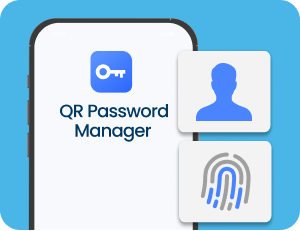
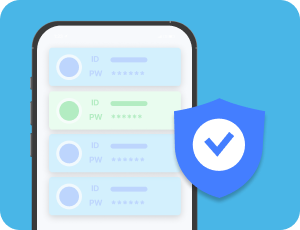
Unlike other password managers, QR Password Manager operates without a central server, eliminating the need for synchronization between user devices. All user IDs and passwords are securely stored within a protected area on your smartphone. Additionally, logging into the QR Password Manager app does not require a separate master ID and password. You can access the app exclusively through your smartphone’s biometric authentication, ensuring only you can use it.

02

Password Transmission via QR Code for PC Browsers

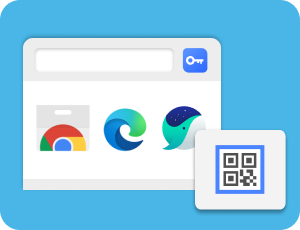
Install the QR Password Manager browser extension on your PC browser (Chrome, Edge). When you navigate to the login page of a specific online service, the QR Password Manager icon will appear in the login input field. Select the QR Password Manager icon to display a QR code. Scan the QR code with the QR Password Manager app, and the corresponding user ID and password stored on your smartphone will be automatically entered into the PC browser.
03

Password Transmission via QR Password Manager Menu on Smartphone Keyboard

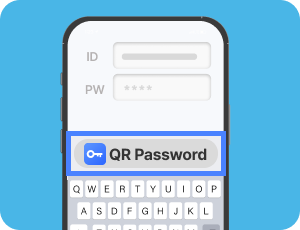
When you need to enter a user ID and password in a smartphone app, the on-screen keyboard will appear, along with the QR Password Manager menu at the top of the keyboard. Select the QR Password Manager menu, and the user ID and password corresponding to the online service stored in QR Password Manager will be automatically entered into the app.
04

Transfer IDs and Passwords to Another Smartphone

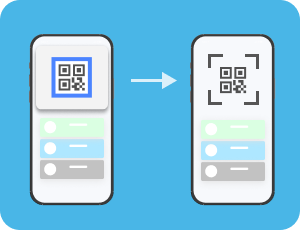
QR Password Manager offers an account transfer feature that allows you to send IDs and passwords stored on one smartphone to a second smartphone. Whether you’re switching devices or need to share credentials with a trusted contact, you can export the selected IDs and passwords as a QR code from the first smartphone. The second smartphone can then scan the QR code to import the credentials.

05

Use QR Password Manager with Smartphone Biometric Authentication Only, No Master ID or Password Required

Traditional password managers can be compromised through the theft of the user’s master ID or password. However, QR Password Manager eliminates this risk by not relying on a central server and removing the need for master ID or password registration altogether. After installing the app, access is granted exclusively through your smartphone’s biometric authentication, ensuring that only you can access the QR Password Manager app.

06

Transfer IDs and passwords saved in Chrome or Edge browser at once

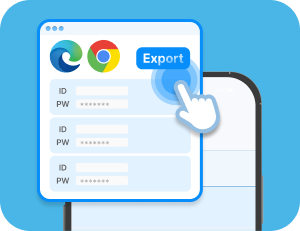
It is equipped with an account import function that allows you to transfer IDs and passwords saved in Chrome or Edge to QR Password Manager at once. You can conveniently transfer the ID and password saved in your browser.